What is an eBay listing template?
A simple explanation of eBay listing templates: what they are, what's inside one, how they differ from eBay's own description editor, and where they go in your listing.
By The Lystro team · Published · 4 min read
Key answer
An eBay listing template is a ready-made design for your listing's description. You keep the design and fill in each item's details, so every listing looks professional and consistent. It sits in the description area, below the photos, price and item specifics.
On this page
If you've seen eBay listings with a neat header, a photo gallery and tidy tabs for delivery and returns, you've seen a listing template at work. Here's what they are in plain English.
What a listing template is (and isn't)
An eBay listing template is a ready-made design for the description of your listing. Think of it as a professionally laid-out page with blank spaces: you drop in the item's photos, title, features and details, and the design takes care of how it all looks.
A template is not the whole listing. eBay's listing form still holds:
- your title, the most important text for search
- the price, format and quantity
- the category and item specifics
- your delivery, returns and payment settings
The template controls the description: the part buyers scroll to below the photos and price, where they decide whether to trust you enough to buy.
What's inside one
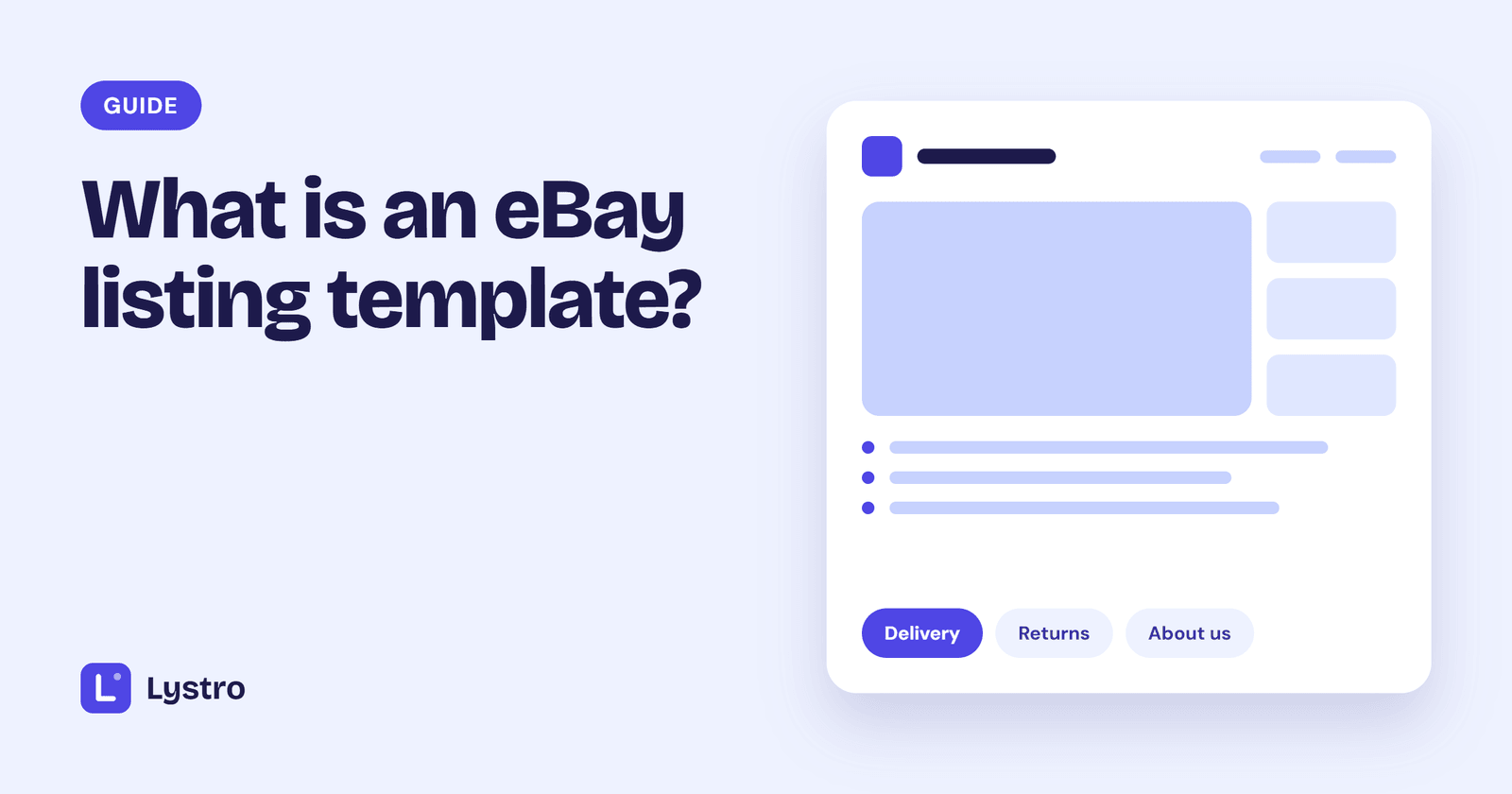
Most templates are made of sections, each answering a question a buyer might have:
- Header: your store name or logo, sometimes a short menu. It tells buyers there's a real shop behind the listing.
- Title and summary: confirms exactly what the item is.
- Photo gallery: large images, often with thumbnails.
- Key features: the main selling points as a short list.
- Description: the details that need full sentences.
- Specifications: a table or tiles for size, model, material and other facts.
- Delivery, returns and about us: usually in tabs or collapsible sections.
- Footer: a closing line and your store name.
Good templates let you add, remove and reorder these sections, because a used camera and a new dress need different things.
Templates vs eBay's own description editor
eBay's listing form includes a basic description editor. You can type text, add bold and bullet points, and it's free and simple. What it doesn't give you is a design: no header, no gallery layout, no tabs, no consistent look across listings.
eBay used to offer built-in design themes called Listing Designer, but it retired them in 2020. Today, a designed description comes from a template you paste in. If you used Listing Designer and miss it, our page on eBay Listing Designer alternatives explains the options.
How templates are built
Under the hood, a template is HTML, the same code that web pages are made from. eBay allows HTML in descriptions, with some rules: no scripts or other "active content", and nothing that sends buyers away from eBay.
You don't have to write or understand the HTML. There are two common ways to work with templates:
- Download a free HTML template and edit the text and image links in the code yourself.
- Use a template editor, where you click on sections to change them and the editor produces the HTML for you.
Where the template goes in your listing
When your design is ready, you copy its HTML and paste it into the description on eBay:
- On a computer, open your listing on eBay.
- In the description section, switch to the HTML view.
- Paste your template's HTML, replacing anything already there.
- Preview and save.
Our guide to pasting into eBay walks through each step with pictures.
Why sellers use them
- Trust: an organised listing suggests a careful seller who'll pack well and answer messages.
- Speed: your store details, delivery and returns are already in place, so each listing only needs the item.
- Consistency: every listing looks like it comes from the same shop, which helps buyers recognise you.
- Clarity: buyers find the facts they need quickly, especially on a phone.
If you're ready to pick one, see how to choose an eBay listing template, or browse templates by category.
Frequently asked questions
Is an eBay listing template the same as an eBay Store design?
No. An eBay Store is a paid subscription that gives you a storefront page. A listing template designs the description of each individual listing. You can use one without the other.
Do templates affect eBay search?
Search relies mostly on your title, item specifics, price and other listing details, which you set in eBay's form. A template helps buyers decide once they've found your listing.
Are listing templates free?
Some are. Free HTML templates cost nothing but usually need hand editing. Template editors charge a fee in return for a visual editor and designs built for today's eBay.
Can I edit a template after I've listed the item?
Yes. Revise the listing, switch the description to HTML view and paste the updated design.
Templates to try
Put this into practice with a ready-made, mobile-friendly design.


Written by
The Lystro team
Lystro is built by an eBay seller with 100% positive feedback, for sellers who'd rather be selling than designing. We write practical guides from real listing experience.
Keep reading
Guides
Why your eBay description looks broken on mobile, and how to fix it
Tiny text, sideways scrolling, overflowing images and tables that won't fit: why eBay descriptions break on phones, how to test yours, and whether to fix or replace the template.
18 October 2026 · 3 min read
Guides
Moving on from inkFrog: what eBay sellers need to do
inkFrog shut down on 1 June 2026. What happened, what it means for your live eBay listings, how to choose a replacement, and how to move your listing designs over gradually.
16 October 2026 · 3 min read
Guides
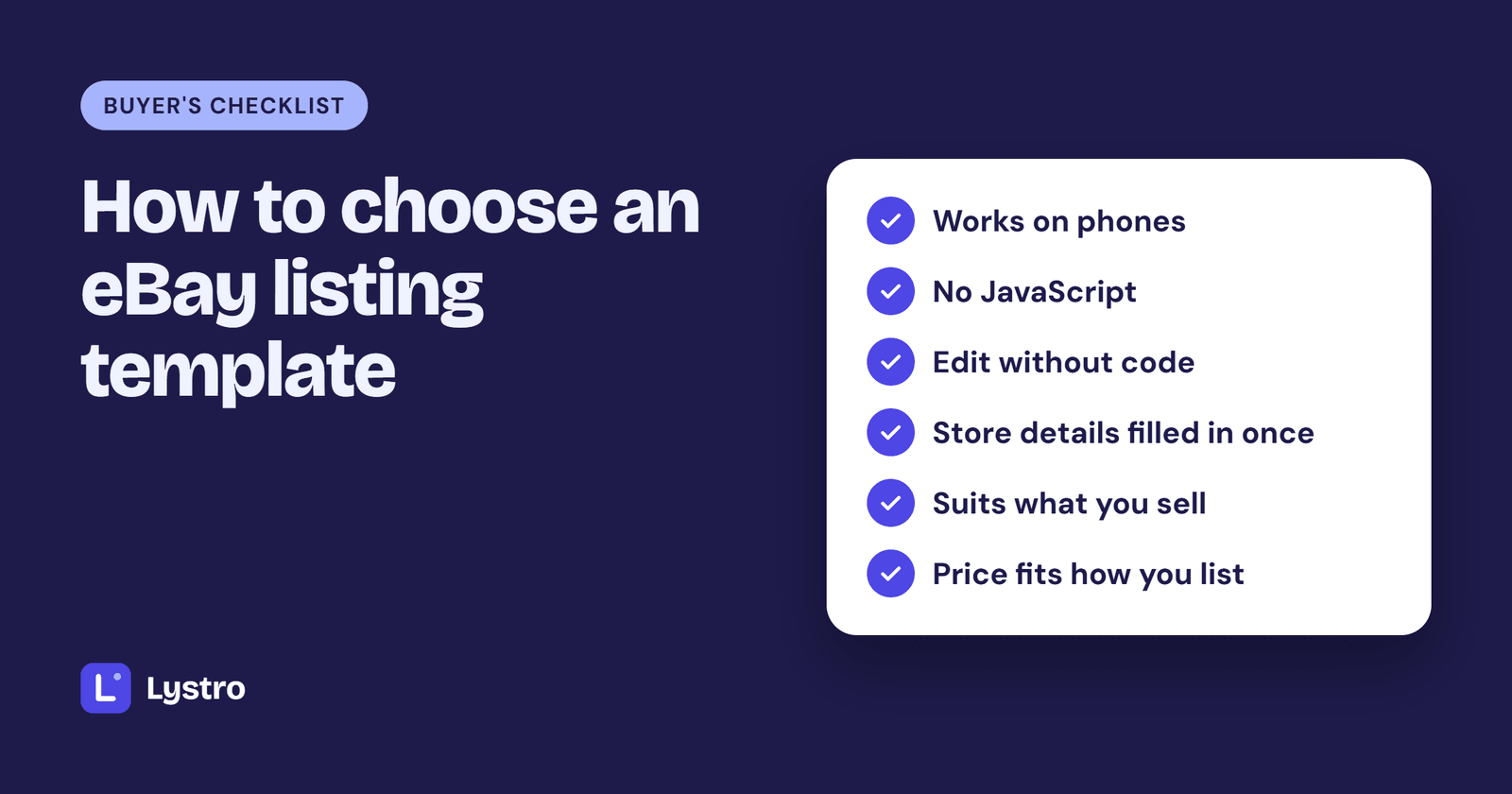
How to choose an eBay listing template: a buyer's checklist
Free HTML, template apps or a custom design? Eight things to check before you pick an eBay listing template, plus the red flags that cost sellers sales.
15 October 2026 · 5 min read